
Are you having trouble with slow speed, a big MBOX, not being able to open certain file types, or not being able to connect to other email clients? And looking for quick and safe ways to move your Thunderbird emails to a new platform? Then I think you should read this piece. This guide shows you the best ways to move your Thunderbird to different file types, such as PST, EML, EMLX, and MSG. To get to the original data, you have to change the file type from MBOX to one that works on other platforms.
This article will talk about why you might want to convert an Thunderbird file to another format, how the manual method works, the steps, what you need to do, and any problems you might run into during the conversion. It will also talk about an expert method, the steps, and some frequently asked questions that will help you choose the best method for your needs without damaging the file or losing data. Let's get started.
These are the main reasons you should move your Thunderbird emails to other apps:
To access mailboxes and emails on different devices or apps - Moving Thunderbird inboxes lets the user read their email from almost anywhere. This includes using their phone to access their Gmail account, which they could not do before because they could only use Thunderbird.
For better compatibility with business or work tools: Some platforms don't accept MBOX files, so many users change them to other formats, like PST, so they can open them in Outlook at work.
To make backups more secure: Many people are moving their email accounts to cloud-based services like Google Workspace. These services back up your emails automatically and make it easy to get back your addresses if you delete them by accident or lose data.
To switch to email clients that are faster or easier to use: People and businesses are switching email clients to make the user experience better and get more done. Like switching to Outlook for better search tools and more professional-level planning tools.
1. Exporting Email Takes Too Long: Because each folder has to be handled one at a time, exporting email by hand through each folder is a very slow process. For instance, it might take hours or even days to export 10,000 texts.
2. Risk of Losing Data: When you copy and change email folders to other formats by hand, you could lose important emails because you might skip a folder during the export, which is possible.
3. Limited Format Convertibility: If you move your MBOX file by hand, you can only move it in a few different formats. This makes the process more difficult. It's likely that users will need to use extra tools to change their MBOX files to the Outlook PST format.
4. It's Hard to Find the Right Settings: If you're new to using the steps by hand, it could be hard to find the personal folder and files, which could lead to mistakes. If you have never done this before and copy the wrong folder by accident, you might not be able to import your emails properly.
5. Process that is done by hand and can't be automated: If you convert MBOX files by hand, you have to do the whole export process again whenever new emails come in. For example, new emails have to be saved the same way every month, which can get annoying.
I recommend GainTools Thunderbird Converter as a professional tool for quickly moving Thunderbird MBOX files to a new platform. This tool makes it easy to change emails from a Thunderbird mailbox to many other forms, including EML, PST, EMLX, and MSG all at once. It does this while preserving all of the original file's email properties, structure, and attachments. Any version of Windows and any version of Thunderbird can run the tool. This powerful tool has a preview option that lets you see what the uploaded MBOX file will look like, file and folder mode filters that make it easy to find specific emails, the ability to save data locally to any location you choose, the ability to convert multiple MBOX files at once without losing any data, the ability to run on its own, and best of all, you can try it out for free before you buy it. Because of this, it is a safe and reliable tool that experts suggest for moving Thunderbird emails to other platforms.
If you want to make your Thunderbird MBOX files work on multiple platforms, all you have to do is follow these simple steps.
1. Get the expert tool and open it on your computer.
2. Open the MBOX files in Thunderbird for Mozilla.
3. Look at the MBOX file and pick it.
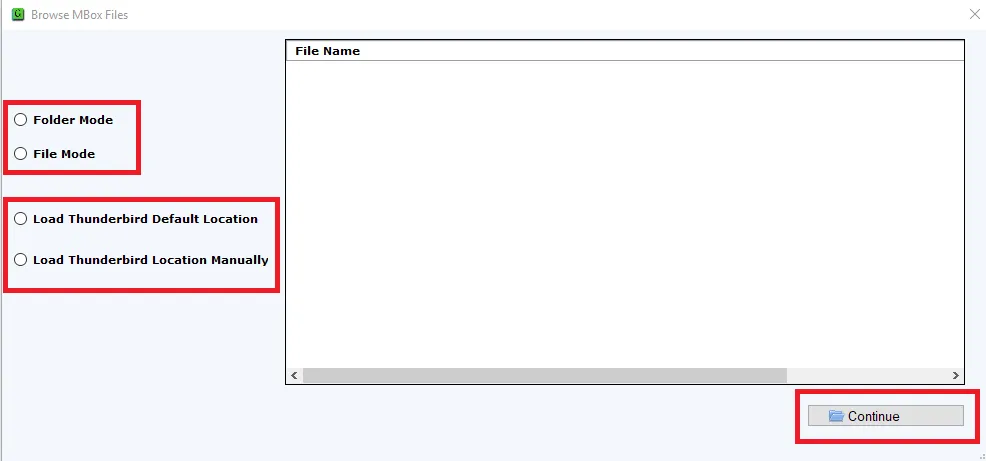
4. Pick the type you want to change to, such as MSG, EML, PST, or EMLX.
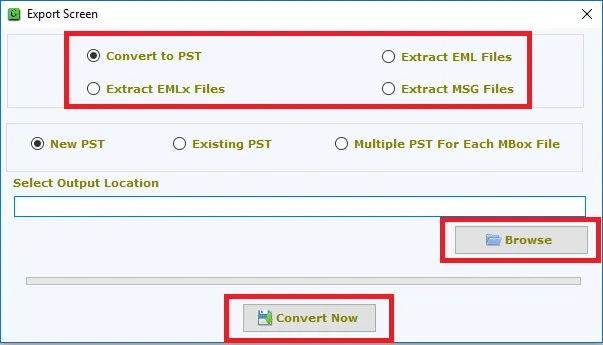
5. Choose where you want the data to go.
6. Finally, click "Convert Now" to finish the process.
To sum up
It will be easier to make the right choice once you know more about why people move their Thunderbird Email accounts to other email platforms, what problems they might run into, and the different ways they can move their messages. The old ways of moving Thunderbird MBOX files may work, but they are slow, dangerous, and hard for most people to use. A professional tool with lots of features and a current user interface, on the other hand, will save you time, make the transfer of your email data safer, and make it easier. This tool moves your Thunderbird mailbox emails safely and quickly, without losing any data or wasting time. Before buying the license version, try out the free version to get a feel for the features. Then, buy the version that meets your needs, since it's important to find a safe and quick way to access your important Thunderbird MBOX file.
FAQs
Q1: Can I believe the Expert Method? Can it keep the data and attachments in my source file?
A - You can trust this professional tool with your original file data and attachments because it claims to keep your data safe and secure.
Q2 : Which method should I use to quickly convert hundreds of MBOX files?
A - The manual method can take a long time because you have to deal with each file one at a time. If you need to quickly convert a lot of MBOX files, you should use a professional tool.

