Microsoft Outlook is a commonly utilized application for business and personal use to manage emails, contacts, calendars, projects, and attachments. Over time, the mail you receive and send adds to the size of your Outlook data file (also known as a Personal Storage Table, or .pst file).
Note that the newer versions of Outlook (Outlook 2010, 2013, 2016, 2019, and Office 365) support a maximum size of 50 GB by default, but it’s dangerous to let a PST file reach or surpass this barrier. Outlook can slow down, hang often, and fail to start properly, or even get badly damaged when there is a large PST file.
Large PST files should be broken into smaller, manageable portions to avoid data loss and keep Outlook working properly. In this tutorial, we will go over the problems with huge PST files, how to divide PST files manually with the built-in capabilities of Outlook, and how to utilize a dedicated application like Divide PST Tool for a speedier solution.
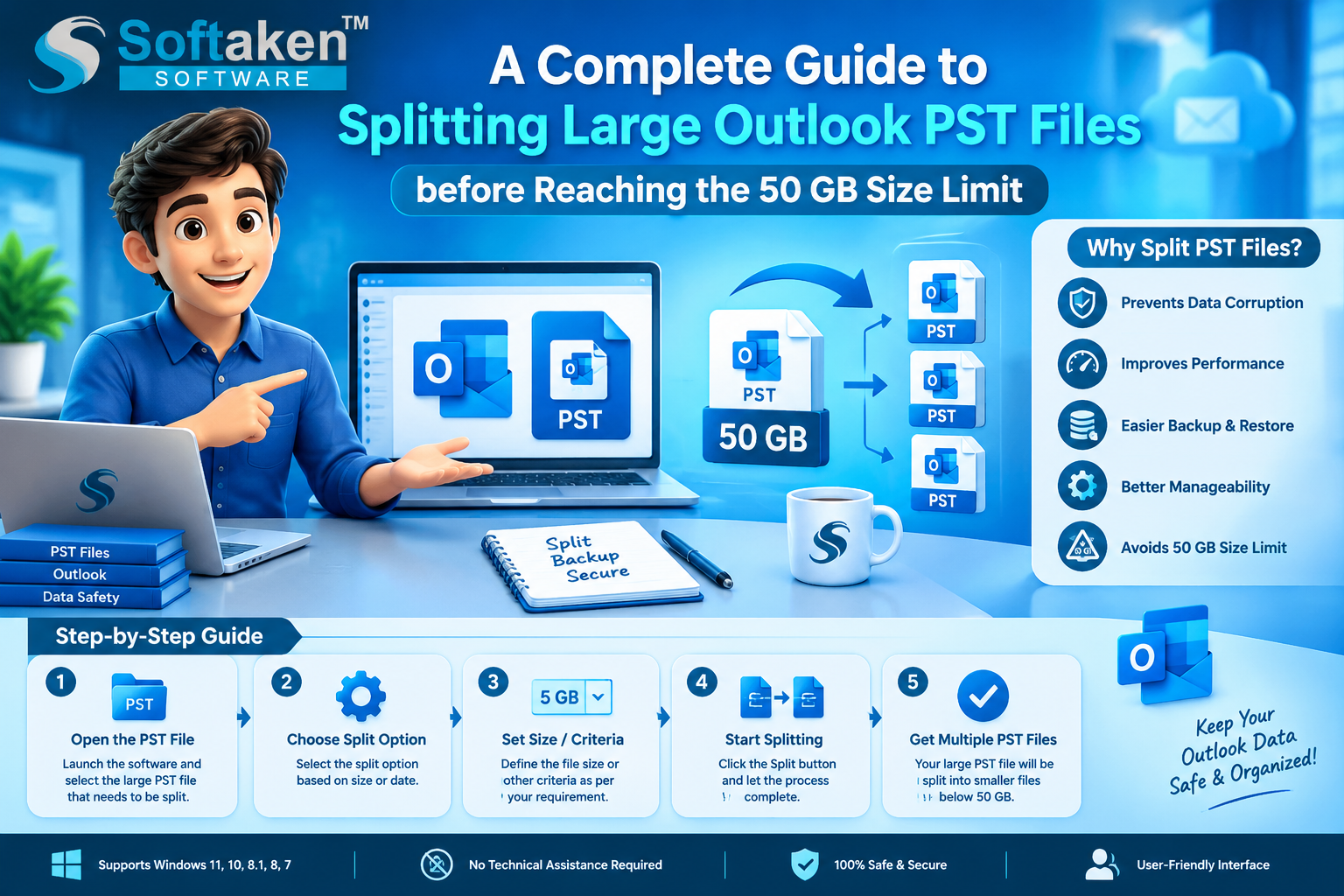
Split Large PST Files – Why You Should
Prevents PST File Corruption: Large PST files are prone to corruption, especially when they reach the 50 GB limit, leading to irreversible data loss.
Improves Outlook Performance: Large PST file sizes will result in slow searching of emails, accessing folders, or starting the Outlook program.
Stops Send/Receive Errors: When a PST file hits the limit size, Outlook won’t download new messages and won’t send emails.
Easier Data Management & Backup: Handling a single gigantic 50 GB file is far more difficult than storing, transferring, and backing up numerous smaller PST files (like 5 GB or 10 GB apiece).
Microsoft Outlook does not have a "Split PST" button, but you may split a huge data file manually using built-in functions such as the Archive tool or the Import/Export wizard.
Method A: Utilize the AutoArchive Feature
The Archive function allows you to migrate older items to a new, independent PST file depending on the dates you specify.
Approach B: Import/Export Wizard with Filters
You may also manually break a PST file into smaller parts by exporting particular folders or date groups.
Limitations of Manual Techniques
While manual techniques might be lengthy and difficult, you can easily split huge PST files with the use of automatic third-party software like Softaken Split PST Tool. It is the most effective approach to split PST files without any data integrity risks.
Split PST Tool Features
How to Split a PST File Using Split PST Software:
Download the Softaken Split PST tool from the official website and install it on your machine.
Add PST File: Start the tool and click on Browse / Add PST File to load the large PST file.
Choose split criteria: Choose the way you wish to split the PST file
Destination Path Set: Click Browse to pick the destination to save the newly produced smaller PST files.
Start Splitting Process: Click the Split Now button. The program will scan the file and produce smaller, corruption-free PST files in the selected output location.
FAQs: Frequently asked questions.
Q1: What is the maximum size limit for an Outlook PST file?
In contemporary versions of Outlook (2010 to 2021 and Office 365), the default maximum size limit of the Unicode PST file is 50 GB. Earlier versions like Outlook 2002/2003 had an ANSI maximum of 2GB.
Q2: What happens when an Outlook PST file is 50 GB?
Once a PST file surpasses 50 GB, Outlook will not be able to download fresh emails or send out messages and will often throw problems. It also greatly increases the chances of file corruption.
Q3: If I divide my PST file, will any of my current emails be deleted or changed?
No. If you break a PST file into smaller chunks, it only moves your emails and the attachments into smaller PST files. The original data, content, folder structure, and email metadata do not change.
Q4: Would it be possible to divide password-protected PST files with the Softaken tool?
Yes, password-encrypted PST files are supported by the Softaken Split PST program. You do not need to delete the password before you start the process.
Q5: Is Microsoft Outlook mandatory for running the Softaken Split PST software?
No, it is a standalone application that can divide PST files without having Microsoft Outlook installed and configured actively on your machine.
Conclusion
It is important to manage PST files that are too large to keep Microsoft Outlook functioning smoothly and to avoid costly data loss from corruption. Outlook’s native Archive and Export functions offer a rudimentary, manual alternative, but they can be time-consuming for heavy users. In such a case, software like Split PST Tool will help you split 50 GB+ PST files by size, date, or folder in only a few clicks.

